Password Protection Practices

How To Backup & Manage Passwords Across Devices

It can happen to anyone…

Recently, several people in our extended circle have experienced serious problems caused by hacked accounts, phishing attacks, or online scams. These incidents have ranged from websites being infected with malware to unauthorized purchases and even cases of identity theft.

Without placing blame on the victims, we can say with some certainty that many of these situations could have been prevented with better password storage and management. What’s worse is that many attempts at using more secure methods of signing in, often create a single point of failure. If one account or device becomes inaccessible, it can prevent you from accessing dozens of others.

Recovering from being hacked

Forgotten Passwords

Forgetting-Your-Password

Forgetting your password can be a real pain.
“When did I update it last?”
“Did I just add 123 to the end of it?”
“Which email was the recovery address for this account?”

The reality is that many of us have become complacent about passwords. Many users have the same 3-5 passwords for most of their accounts. When we have to reset them, we might just add a number to the end or a punctuation mark. Most account set up screens now require stronger passwords with rules like ‘minimum 8 characters with one number and one special character’.
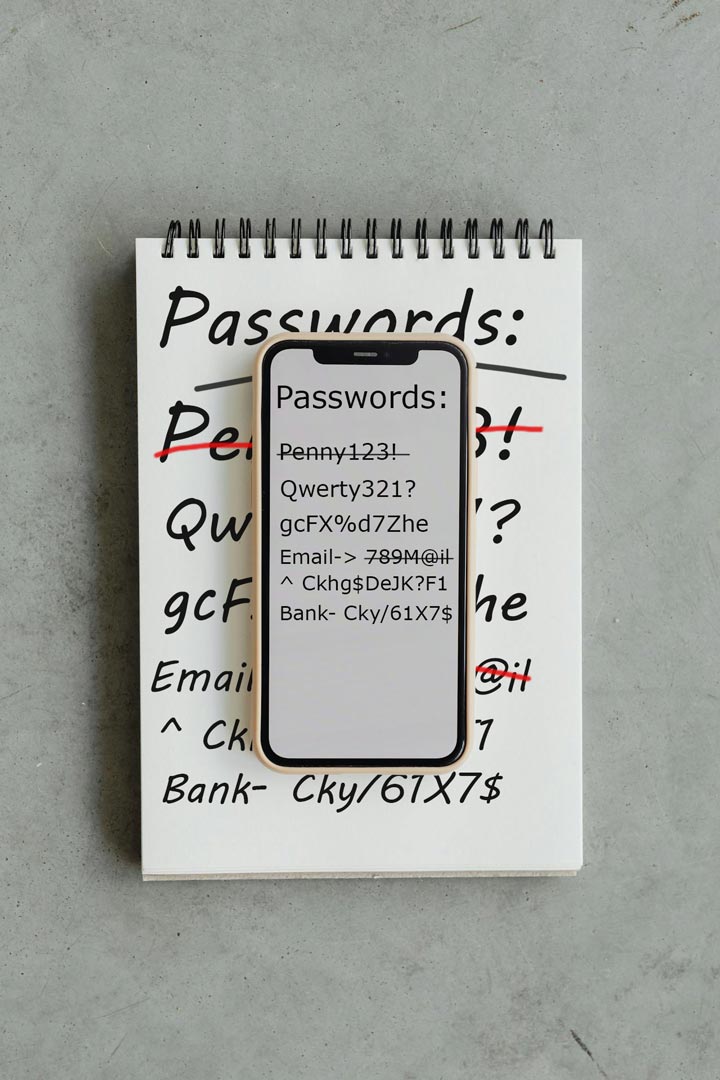
Over the years, passwords often evolved from something simple like Garfield to Garfield123 and eventually Garfield123!

Reusing Passwords

“I use the same password for everything”

Using the same password for multiple accounts is something we have all been guilty of at some point. It probably goes without saying, but it’s so important to create different passwords for your various logins. It would be nice to think that it “won’t happen to me”, but the odds of your password eventually being leaked are not stacked in your favor.

Once a password is compromised, either by a leak, a successful phishing attempt, or PW cracking software, the credentials will be added to a database of working passwords. These credentials are often shared or sold among cyber criminals operating on the dark web.

Sometimes within minutes of a password being confirmed to be working, automation programs will start trying that password and variations of the username on hundreds of websites. 

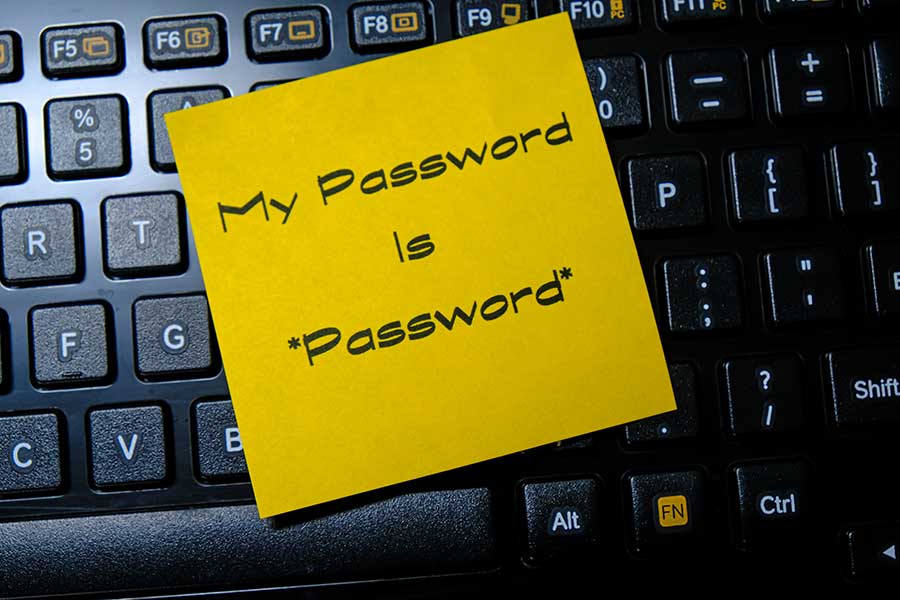
A sticky note on a keyboard reads "My Password is *Password*

SSO - Single Sign On

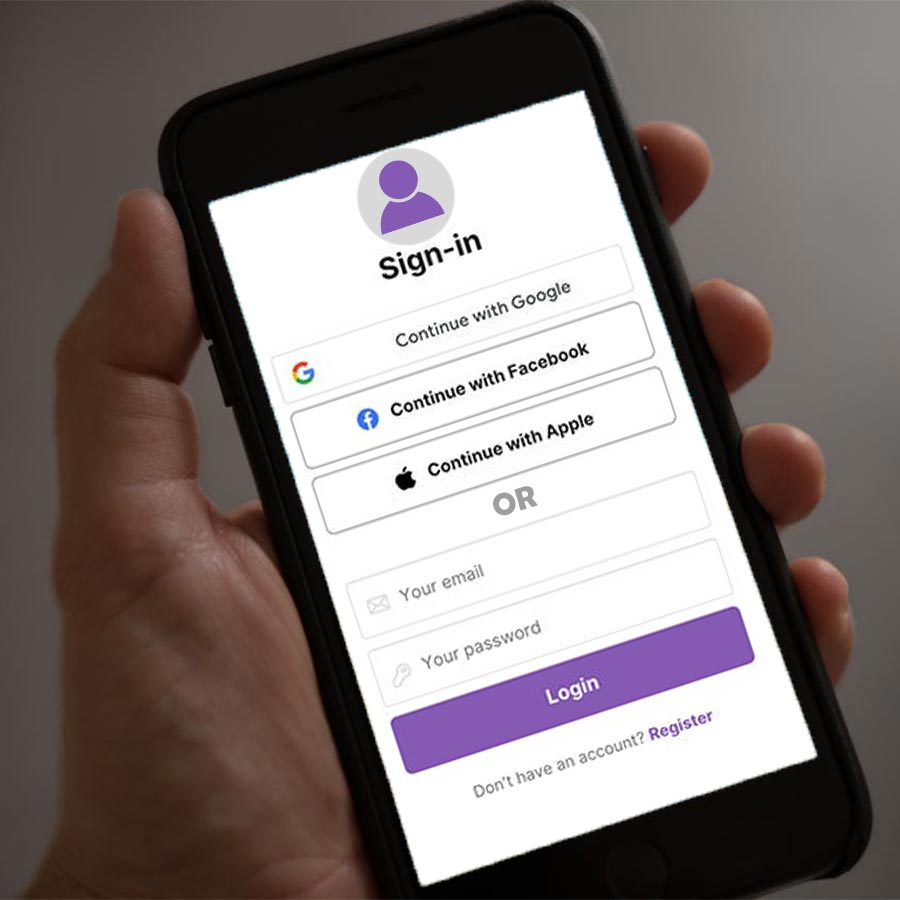
A phone screen shows options to log in with google, facebook, Apple, or email and password

Then came the Single Sign On, which made everything easier.
“Sign In With Google or Facebook” started showing up everywhere. Since most devices were already signed into Google or Facebook, it became incredibly easy to use those accounts to log in everywhere. To be clear, Single Sign On is convenient and generally secure, but it creates a dependency on a single account and therefore a single point of failure.

Potential Risks of Single Sign On (SSO)

  • Losing access to your phone means potentially getting locked out of accounts.
    If it gets lost, stolen, or damaged, you lose access to your main (Google/Facebook) account. Most people don’t know their Google password either. 
  • Someone else gets access to your Google/Facebook account, and they now have access to all other accounts you use it to sign in with. 
  • Account Lockout: Google/Facebook decides to lock you out of your account, either for “suspicious activity”, or not following their rules (common with Meta/Facebook) 
  • Account Migration/Orphaned Accounts: If you used a Workspace account from your employer, or school based account as your SSO, you may have forgotten about what sites/platforms used that account to sign in. Later after you lose access to that old Google account, you will also be locked out of those other accounts. This is especially true if you never created a backup password during the sign up process.
  • Ability to delegate access (for support). This comes up from time to time in the work that we do. A client might ask us to sign in as them and set up or integrate two systems for them. Since we are already working together as a trusted partner, we normally suggest creating a temporary password and sharing that with us so we can log in as the user and make the necessary changes. Then a few minutes later, the account owner changes the password again so they have full control over its access. This process becomes further complicated with extensive use of SSO.

Device / Default PW Mangers

“I let my phone/computer remember all my passwords”

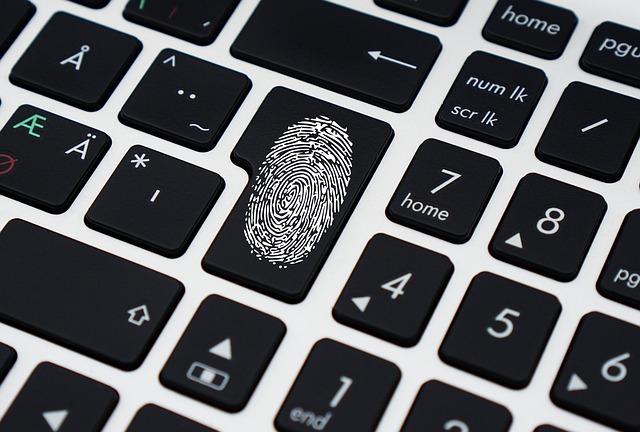
Assuming you are good at making strong passwords and you use a different one for each account, this is actually fairly secure. It’s also very convenient because all you have to do is type your lock screen code, or use biometrics like face ID & fingerprint, and it will then enter the login credentials for you.

The biggest downside with this is that many users don’t make a backup of these passwords or save them to the cloud. Just like the issue with Single Sign On, this creates a single point of failure which is a fragile system. If that device fails, becomes damaged, or is lost or stolen, you have to rely on recovery methods to regain access. 

Keyboard with a fingerprint symbol over the Enter key

Password List: The Notepad Method

A sample password list written on a paper notepad and duplicated as a digital note app on a phone.

“I keep all of my passwords written down in a note pad / note app”

This is more common than some might think. It was a trusted method for a long time and some people do this with old school pen and paper, while others do it in some form of digital notepad.

While a paper list is less likely to fall into the wrong hands, and a digital note pad can be backed up, the dangers of these two methods far outweigh the advantages. Here are some of the risks with passwords lists on notepads or note apps. 

Physical Password Lists:


  • It can be hard to differentiate some characters. E.g. “I|l1I|“ Are those a capital i, a lower case L, the number one, or a separator? Details like this can make it difficult to enter the correct password later on. Some systems only give you 3 wrong guesses before imposing stricter requirements for additional attempts. 
  • When we write passwords by hand, we are more likely to choose shorter and more memorable phrases. That makes these credentials easier for attackers to guess or use software to crack them. 
  • Paper can fade or be damaged over time from spills, floods, fire, or general wear.

Digital Password Lists: 


  • Passwords are not encrypted or obscured. They are written in plain text and more vulnerable to being intercepted or discovered by malware
  • Notepad apps are only as secure as the account that they are stored in. If your Google Keep, Evernote, Apple Notes, Obsidian account were to become compromised, hackers would now have a list of every account, username, and password you have created. 
  • Digital notes stored on a single device (e.g. the basic notepad app that came with your computer or phone) has both the security issue of being non-encrypted, but also the vulnerability of being not backed up. Additionally it has the same potential weakness of being the only copy to exist, while backups of this must be treated as highly sensitive info in the way they are stored. 
  • If a phone or laptop is stolen and unlocked, a plain text password list gives immediate access to every account listed. 


What Should I be Doing to Protect My Passwords?

Since using a Single Sign On (like Google/Facebook) and letting your phone or computer store all your passwords both create a single point of failure, let’s consider the options for using an encrypted Password Manager. 

Commonly referred to as a "Vault", these encrypted databases can technically hold all types of data. What makes one of these vaults a true Password Manager is how the interface has been configured. 

An encrypted Password Manager is a smart choice for creating a central list of all your online credentials. The database is stored as a file either on your local device, in cloud storage, or on an external storage device like a USB drive. To access the data someone needs a key, which in most cases is your “Master Password”.  

For those who are especially security conscious or working with highly sensitive data, a physical key can be used.  This often comes in the form of a USB drive with a long series of codes that must match the vault. Unlike a password, this physical key cannot be stolen remotely. An attacker would need physical access to the device. 

Bank Vault With lock symbol on shield and blue light or code flying out of it.

How is a Password Manager better than the one on my phone?

Password-Manager-is-like-your-Bouncer-

Once you have moved all your passwords into the vault, you can safely make some backup copies.  You can store these copies on physical devices and USB/Hard drives, or in cloud storage. Most vault makers actually store your vault on their servers by default. While it might feel counter intuitive to trust a 3rd party to store this data for you, most reputable password managers use zero-knowledge encryption. This means that even the company storing the vault cannot read your data. 

That’s not to say that it is impossible to brute force a vault key, but modern encryption makes brute force attacks extremely difficult and impractical for most attackers. Most cyber criminals would rather move on to easier targets than spend the time and resources to crack an encrypted vault on the consumer level.

should I stop letting my device enter the password?

Not necessarily.
If your device is set up to fill in your credentials only after you confirm that it’s really you, via face ID, fingerprint, or lock screen passcode, that is still fairly secure. And it’s certainly good enough for most low level daily sites like Tik Tok or Pinterest.

Where you should only use the passwords from the vault are for sites with sensitive info such as: 


  • Banking sites / Venmo / Paypal / Stripe 
  • Medical portals
  • IRS or other official sites
  • Airline Rewards (because they have your passport info)
  • Educational portals
  • Crypto Wallets
  • Uber Eats / Door dash (they have access to your credit card)
  • Website & Domain Admin portals (for website owners/manager)

When in doubt ask yourself “How bad would it be if the wrong people could access the information in this account?” By isolating those sensitive credentials (UN/PW) inside of your vault and letting the vault autofill them only on pages that match the official URL, you are increasing your protection from various phishing attacks, scams, and malware.

Choice-of password managers

Preventing Lockouts

How-to-NOT-get-Locked-Out-of-Your-account

When using a Password Manager, or any kind of digital vault, you should do two things:


     1. Write down your master password and store it in a safe place.

     2. Generate a set of backup codes, print these out or write them down, and also store them somewhere safe. 

While it is ideal if you actually remember this password for ease of use, you need to have a backup plan because losing this vault key means that you might be locked out forever.  In this case writing these down (or printing it out) makes sense because you can’t store it digitally. It’s common for people to keep the master password or digital key in a physical home/office safe.

How Do I Set Up my encrypted Password Manager / Vault?

Once you decide on which vault system you wish to go with, it’s a fairly straightforward process. Depending on how many passwords you have, this can take anywhere from a few minutes, to an hour to set up. While each PW manager will differ slightly, they generally work like this: 


Go to the log in screen for whatever site you want to save the password of.
For example, Wells Fargo’s site is just Wellsfargo.com but sometimes to login you are redirected to https://connect.secure.wellsfargo.com/auth/login/present
You would copy the URL of the page where the actual username and password are entered. 

*Be sure you are on the genuine site and not a look-alike.

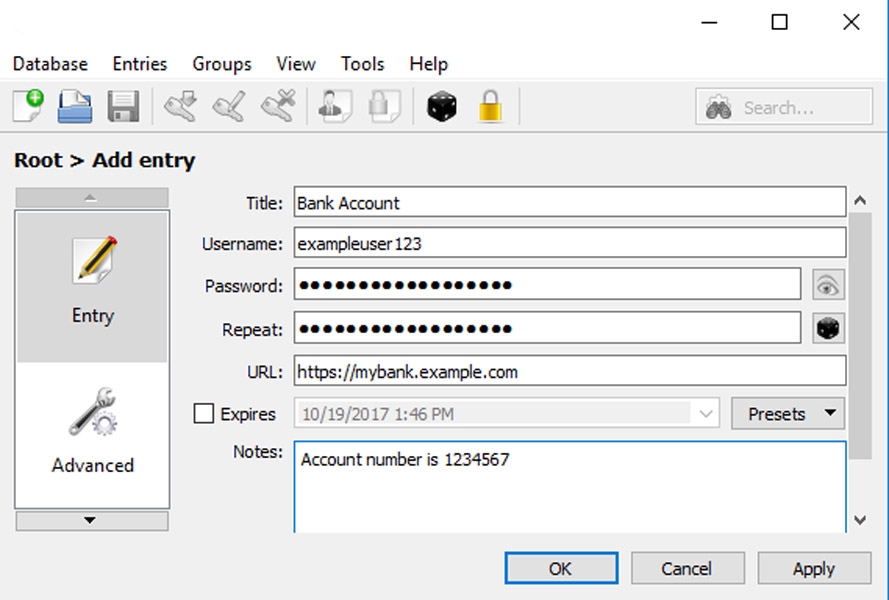
Now you are going to make a new entry into your password manager. You will copy the URL of whatever page is asking for your Username and Password, and paste it into your PW manager app. You will also add the full username (or email address if that is used), and the password.

If you can’t remember, but your computer or phone knows the password, let it paste that into the page. Before hitting “log In”, look for an eye symbol or words that say “show password”. Now you can copy that and paste it into the password manager as plain text. This should be all you need to do for each site that you log into. Depending on which PW manager you are using, you can add other things like a Name for this or some notes about this site/account.

How-to-set-up-a-password-manager

How do I pick a better password?

For starters, don’t use your pet’s name and the year you were born.

This is more common than you think and hackers LOVE when you pick such an obvious password. Most pet owners, parents, smitten couples, etc, post photos of their beloved on social media. They also have their birthday as public info so people know when to send them a virtual greeting card. Don’t make things easy on cyber criminals by picking something so obvious. 

Pass-Phrase: 

One good method for creating a strong, but memorable, password is to use a string of connected words and numbers. Random sounding words work best as long as you can remember them.

Jupiter-Utility-November-Everest-Nineteen-98! would be a good passphrase for someone born in JUNE 1998. This seemingly random sting of words, numbers, and characters would be very difficult to guess even if someone knew your birthday. 

Use A Random Password Generator:
Most password managers come equipped with a random password generator. The downside is you will never be able to remember this string of random numbers, letters, and symbols, but if you’re using the password manager correctly, and have it backed up, you will never need to remember this at all. 

2FA / MFA - Authenticator Apps

Add an Extra Layer of Protection with an Authenticator App

Even the strongest password can become compromised. That’s why many services now support Two-Factor Authentication (2FA) or Multi-Factor Authentication (MFA).

With 2FA enabled, logging into an account requires two things:

  1. Your password 
  2. A temporary verification code generated by an authenticator app
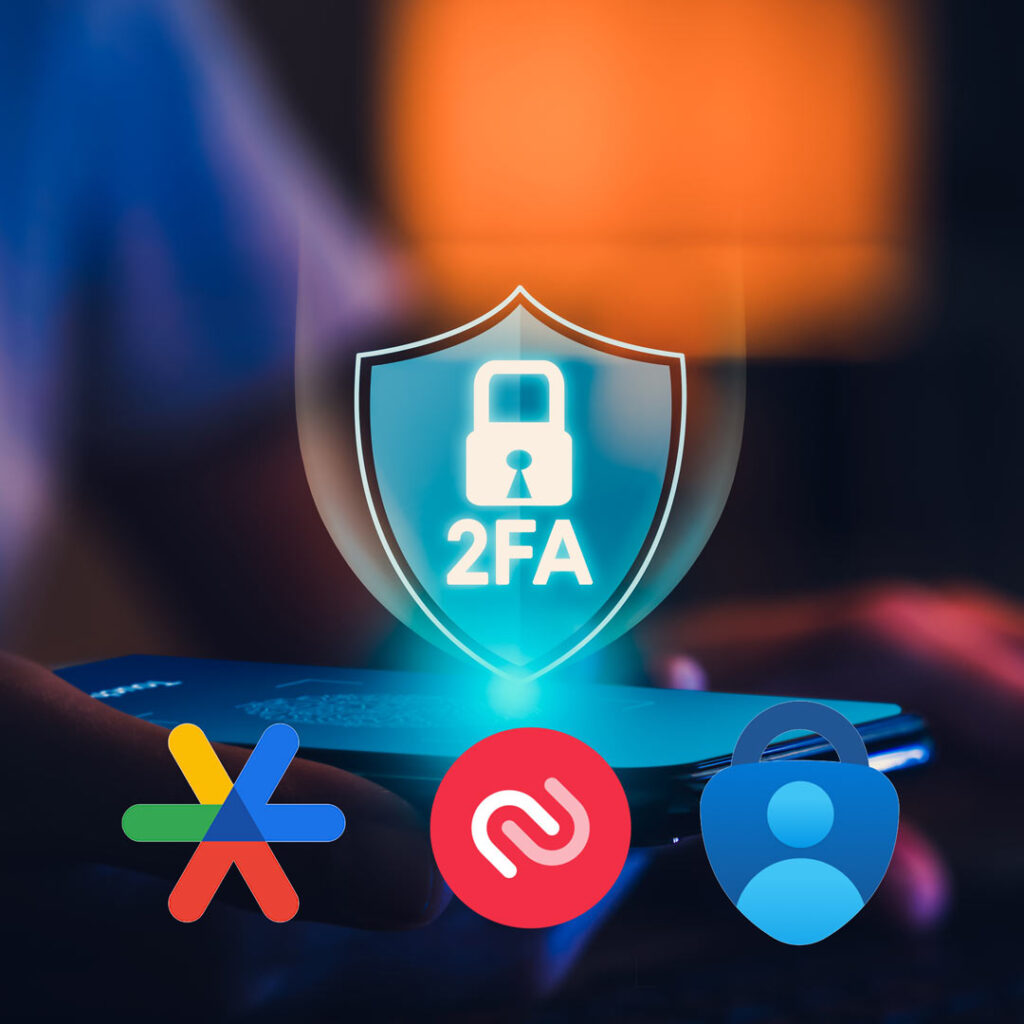
Digital Shield with "2FA" on it. Below are icons for Authenticator Apps.

Many users are familiar with getting a code or OTP (One Time Pin) sent as a text message. That is now considered less secure than using an Authenticator App because these codes change every 30 seconds, and are only available on your device. Even if someone manages to obtain your password, they would still need access to your phone or authentication app to log in.

Most major services, including banks, email providers, and admin accounts now support, or even require this additional security layer. Some of the most widely used authenticator apps include:

  • Google Authenticator
  • Microsoft Authenticator
  • Authy

Setting up 2FA typically takes only a few minutes and significantly improves your account security. When combined with a password manager and strong passwords, it provides one of the most effective defenses against unauthorized access.

Many authenticator apps also provide backup or multi-device options. Some, like Authy and Google Authenticator, allow codes to sync across multiple devices, while others like Microsoft Authenticator allow you to restore your accounts if you replace your phone.

Some authenticator apps provide ways to recover or sync your authentication codes if you replace or lose a device. For example, Google Authenticator now supports syncing codes to your Google account, Authy allows secure multi-device access, and Microsoft Authenticator offers encrypted cloud backup so accounts can be restored on a new phone.

In Summary

Good password management is no longer optional. Most of our personal and professional lives now exist online, and nearly every service we use depends on login credentials. Unfortunately, many of the habits people developed years ago like reusing passwords, writing them down in notebooks, or relying entirely on a single device, were never designed for the scale we operate today. As modern systems have become larger and more complex, the number of threats we face has also increased.

The good news is that improving your password security doesn’t require advanced technical knowledge. By adopting a dedicated password manager and using stronger password practices, you can dramatically reduce the risk of account compromise, identity theft, and the frustration of constantly resetting forgotten passwords.

In this article we’ve covered some of the most common password habits and why they can create problems over time. In the next part of this series, we will look at several popular password managers and compare their features, security models, and ease of use. After that, we will walk through a step-by-step tutorial showing how to set up and migrate your existing passwords into one of the most recommended options.

While nobody enjoys spending time managing their passwords, a small investment of time now can save you from potentially significant problems later and make your digital life more secure for years to come. 

Enjoying Our Articles?

Or you can check our Socials:

Subscribe to get updates when we publish something new

You can unsubscribe at any time

Leave a Reply

Your email address will not be published. Required fields are marked *

Here Are Some Related Articles:

Check Out Some Other Great Articles:

Let's Find Some Time...

Schedule A Call or Meeting with Max

Disclaimer: By submitting an email address or phone number to this website, you consent to receive email and/or text messages from Maximus Marketing Management, our members, and/or our partners at the email address or phone number provided, including automated messages and messages related to Customer Care. Consent is not a condition of purchase. Msg & data rates may apply for text messages. Msg frequency varies. Unsubscribe at any time by replying STOP or clicking the unsubscribe link (where available). Reply HELP for help. See more info at: MaximusMarketingManagement.com/privacy-policy

Maximus
Marketing
Management

Project Inuqiry:

Prefer To Talk In Person?
Let's Schedule A Chat...

Disclaimer: By submitting an email address or phone number to this website, you consent to receive email and/or text messages from Maximus Marketing Management, our members, and/or our partners at the email address or phone number provided, including automated messages and messages related to Customer Care. Consent is not a condition of purchase. Msg & data rates may apply for text messages. Msg frequency varies. Unsubscribe at any time by replying STOP or clicking the unsubscribe link (where available). Reply HELP for help. See more info at: MaximusMarketingManagement.com/privacy-policy

Maximus
Marketing
Management

How Can We Help?

Prefer To Talk In Person?
Let's Schedule A Chat...

Info Needed To
Generate Report:

  • Your Name, Business Info, & URL
  • History of SEO Efforts
  • Target Audience & Direct Competitors
  • Key Metrics to Focus On
Password Protection Practice

Step 2/4: Website & Business Goals

What best describes your current SEO? *
What SEO strategies have you started working on?

Step 3/4: Target Audience & Competitors

What location(s) are you trying to reach people in?
Other?
Who are your top competitors in search results?

Step 4/4: Additional Insights *Optional but Useful!

Have you worked with an SEO agency before?
What’s your biggest SEO challenge right now?

The thing is...

This Page is only an Example.
It's not "Real".

Not All Of The Links Function the way They would If This was A Fully Developed Site

Looking For A Website?

build your brand.
grow your audience.
achieve your goals...

Let Us Show You What We Can Do!

What's You Biggest Goal For Social Media Marketing?
Opt-In *

Disclaimer: By submitting an email address or phone number in this form, you consent to receive email and/or text messages from Maximus Marketing Management, our members, and/or our official partners at the email address or phone number provided, including automated messages and messages related to Customer Care. Consent is not a condition of purchase. Msg & data rates may apply for text messages. Msg frequency varies. Unsubscribe at any time by replying STOP or clicking the unsubscribe link (where available). Reply HELP for help. See more info at: MaximusMarketingManagement.com/privacy-policy
How do you feel about your current social media posting schedule? *
Do you currently have a dedicated social media manager?
Which platforms are you currently using?
What has been your experience with running ads / boosting posts?
What do you think went wrong with your ad campaign?
What kind of results do your organic posts normally get?
Which platforms do you, or would you run ads on?
What’s your estimated average monthly ad budget?
Do you have a brand style guide or existing content strategy?
What’s your biggest challenge with social media right now?
What types of content do you prefer? (Check all that apply)
How soon are you looking for help?
What’s the best next step for you? *

Get Your
SEO REPORT!

Want to know how your website is performing in search results?

Our FREE SEO REPORT gives you insights into your website’s strengths, weaknesses, and opportunities to rank higher on Google.


What’s Included?

  • Your website’s SEO health score
  • Keyword & ranking analysis
  • Speed & performance insights
  • Mobile & user experience check
  • Actionable improvement tips

Maximus
Marketing
Management

Project Inuqiry:

- Step 2

Prefer To Talk In Person?
Let's Schedule A Chat...

Disclaimer: By submitting an email address or phone number to this website, you consent to receive email and/or text messages from Maximus Marketing Management, our members, and/or our partners at the email address or phone number provided, including automated messages and messages related to Customer Care. Consent is not a condition of purchase. Msg & data rates may apply for text messages. Msg frequency varies. Unsubscribe at any time by replying STOP or clicking the unsubscribe link (where available). Reply HELP for help. See more info at: MaximusMarketingManagement.com/privacy-policy

Great Success!

Nice Work
Your message
has been sent!

Thanks for reaching out! If you’ve scheduled a meeting through the calendar app, be sure to see the Meeting Details link below.
If you have sent a message or filled out a form, you should check your email for the automated response. In either case, you will most likely get a personal response in the next 24 hours just to follow up. Check your spam folder just to be sure you are seeing our messages