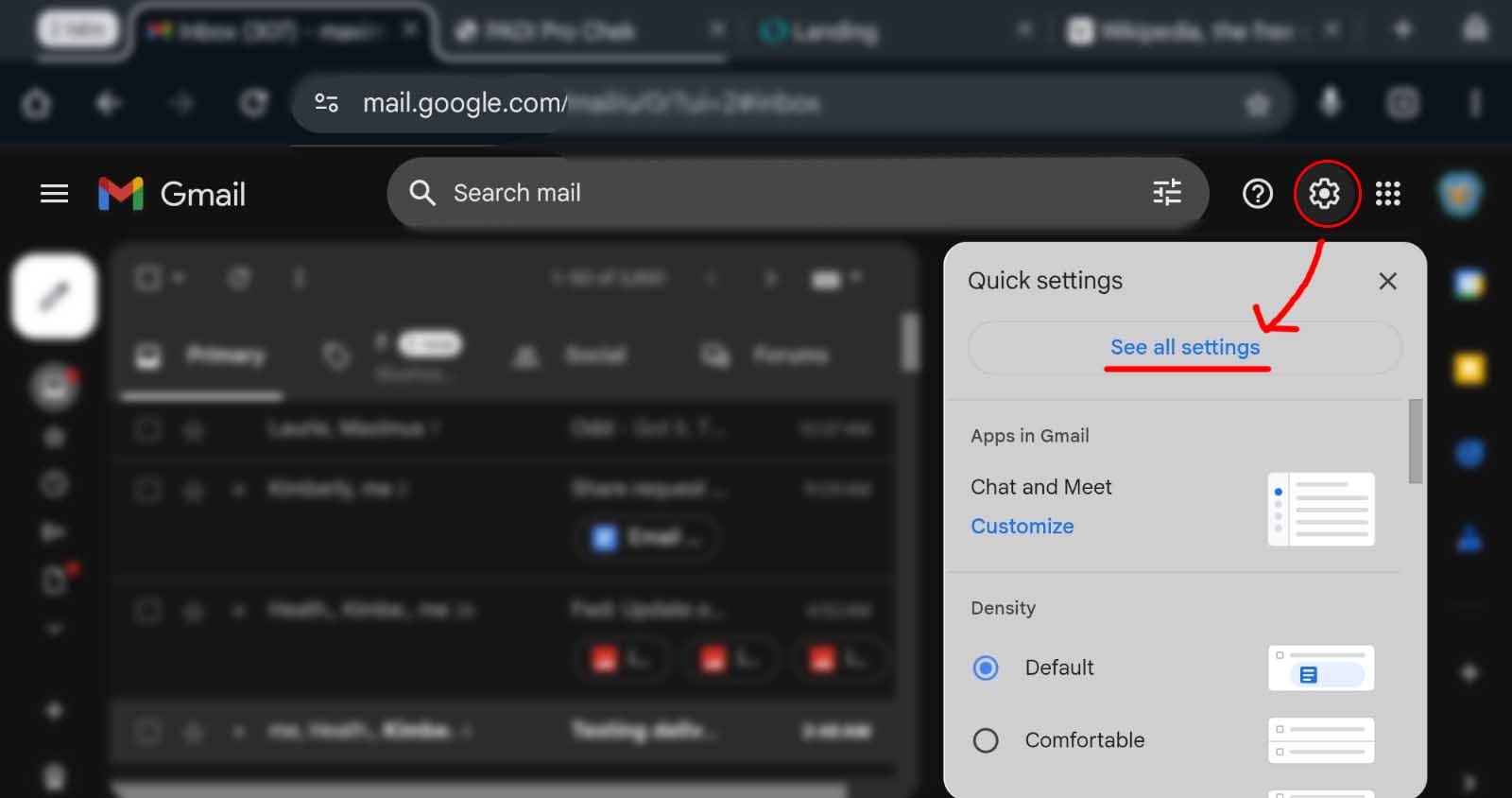
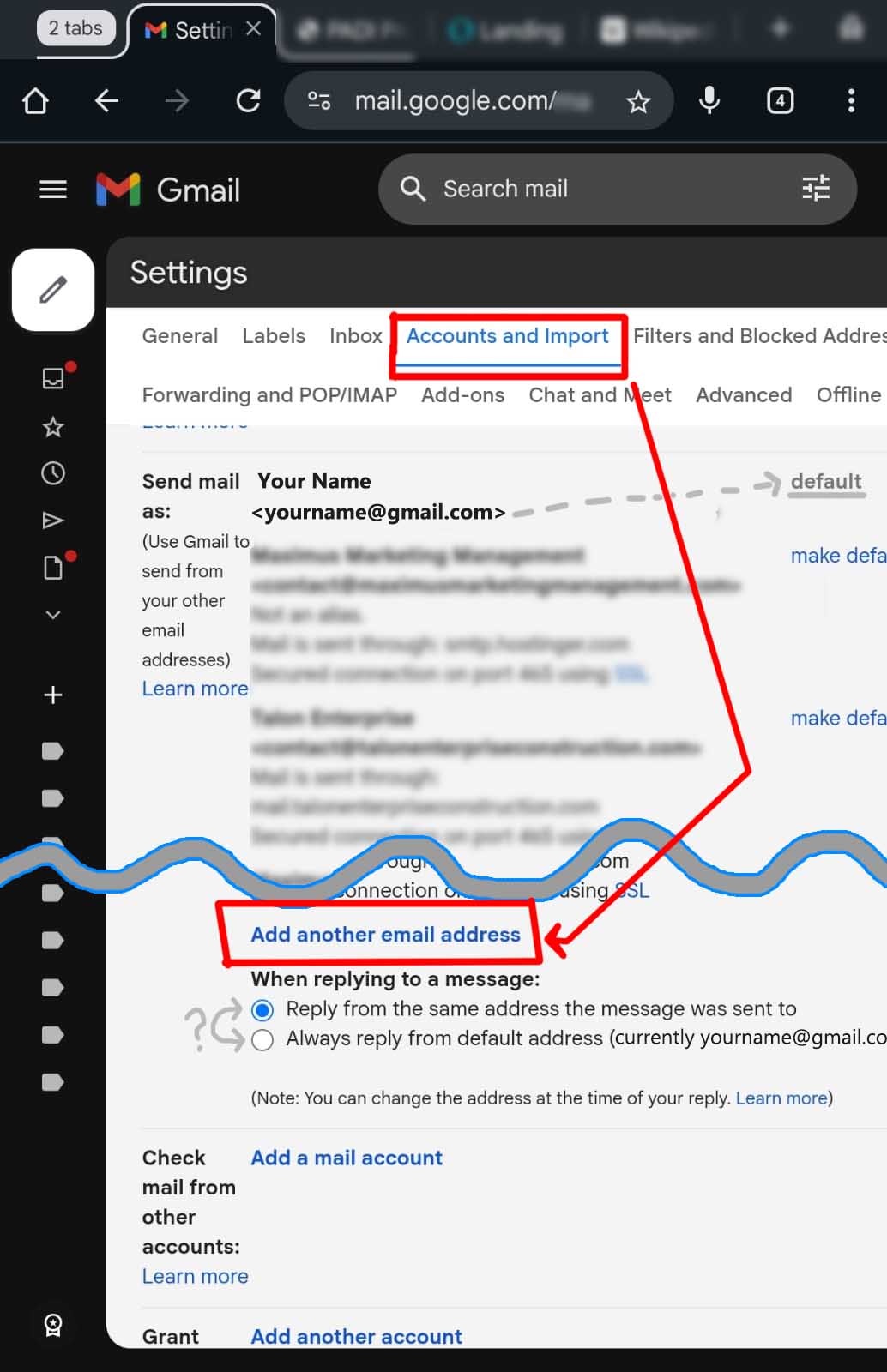
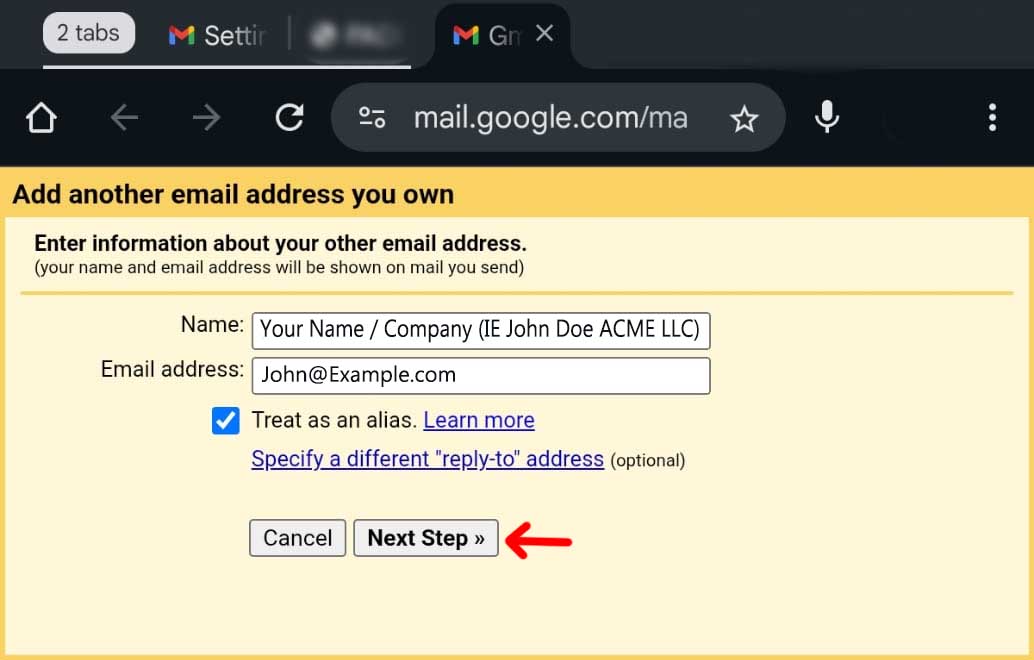
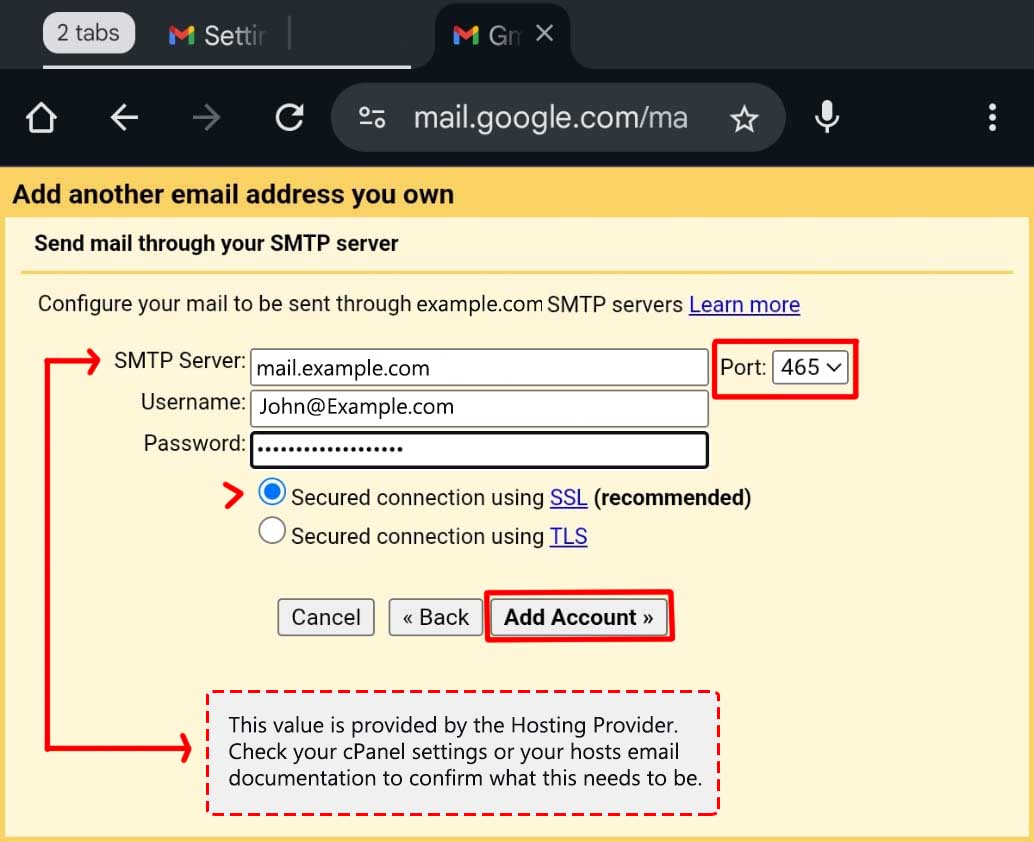
If you are signed into your Gmail account on a laptop/desktop computer, you can skip ahead to Step 2.
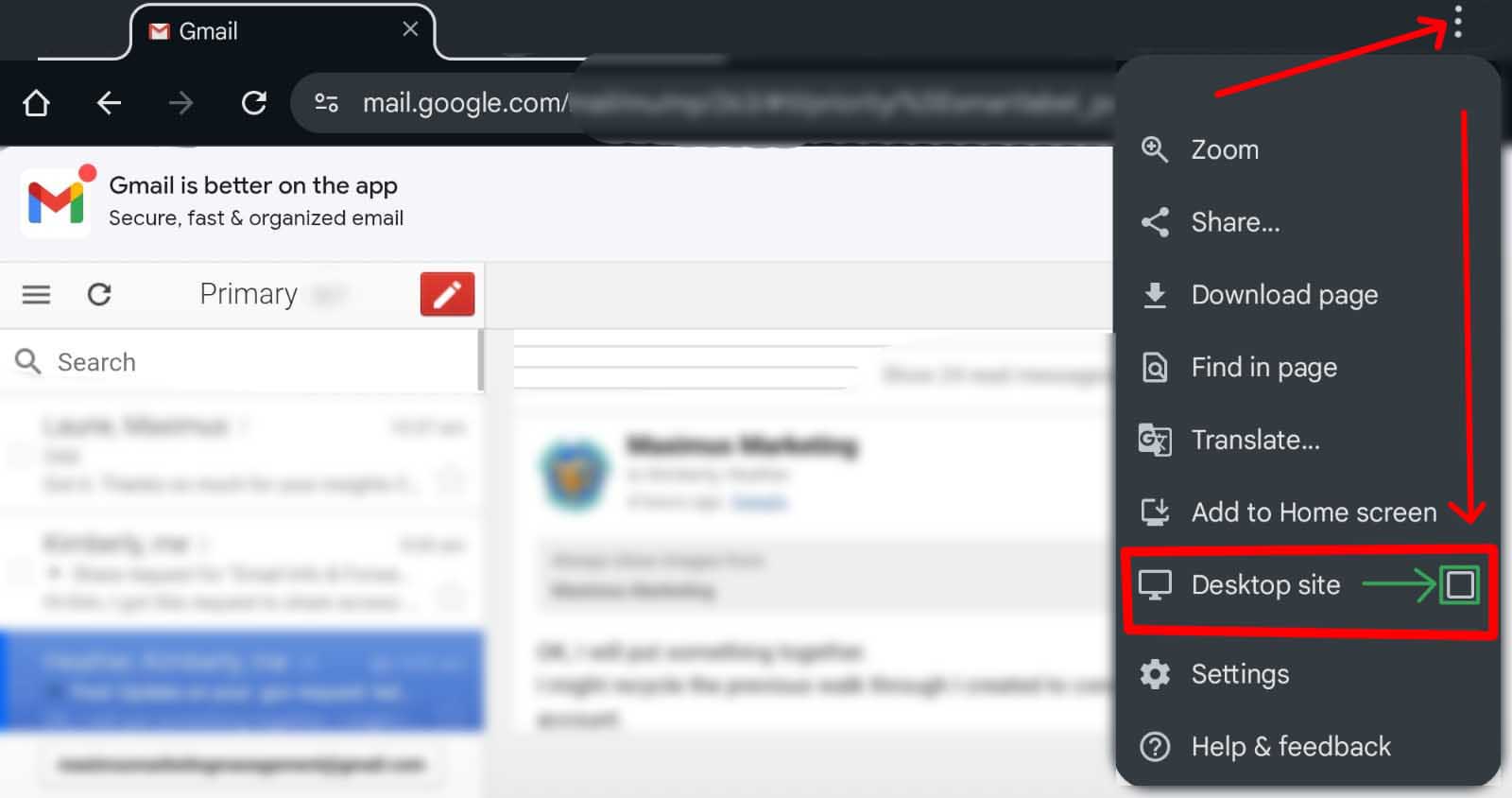
It’s becoming increasingly more common for people to only interact with their emails through the use of mobile apps like the Gmail app. Many people today do not have access to a proper computer or don’t have a need for one. While that is fine once this process is complete, you will need to access the desktop version of Gmail to set up the “Send Mail As” function.
Fear not because we have a work-around for mobile-only users (as long as you know your Gmail password).
You will need to open a web browser on your mobile device, such as Chrome, Firefox, or Safari and enter the Gmail URL: Https://mail.google.com/ If your browser shows you a big button that says “Open the Gmail App”, look on the screen for smaller text that says: “Use the web version”. This is what you want.
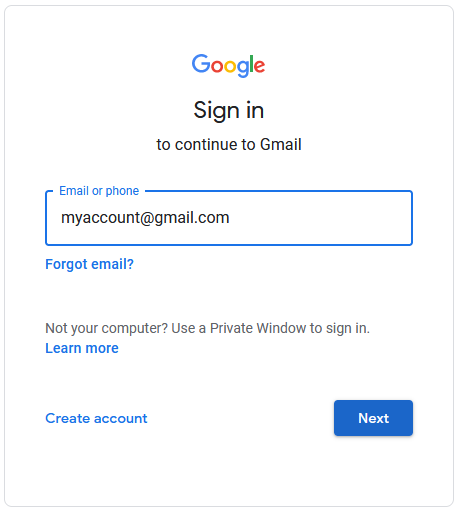
Once you do that, you will either be automatically logged into Gmail or you may be prompted to sign into your account.
If your device went to your inbox without asking for your password, skip ahead to Step 1-B. If your phone asked you to log in, follow the steps below:
Even though your Gmail app may be signed in already, the web browser may not have your gmail password saved. If you know it, then enter the correct password and follow any confirmation steps that might be required to confirm that it’s “really you” trying to log in.
If you don’t know your password you can either find it in your password manager, or you can reset your password. See the side bar for these steps.